

Loading
  • Link to Rss this site
  • Link to X
  • Link to Youtube
  • Link to Facebook
  • Link to Flickr
Hypergrid Address: http://cc.opensimulator.org:8002/
OpenSimulator Community Conference
  • Home
  • Live on Youtube
  • About
    • About the Conference
    • Conference FAQs
    • Branding Guidelines
    • Code of Conduct
    • Previous Conferences
  • Register
  • Schedule
    • Schedule
    • Compact Schedule
  • Grid Info
    • Login Info
    • Avatars
    • Map
  • News
  • Get Involved
    • Call for Volunteers
    • Community Event Sign-Up
  • Speakers
    • List of Speakers
    • Call For Proposals
    • Co-Presenter Information Form
    • Limited Speaker Release Agreement
    • Limited Speaker Release Agreement FAQ
  • Sponsor
    • Call for Sponsors
    • Expo Booth Guidelines, Access, & Submissions
    • Sponsor Artwork Submission
  • Staff
    • Call for Volunteers
    • Greeters & Moderators Prep Page
    • Conference Organizers
    • Confidential Information Policy
    • Intellectual Property Policy
  • Contact
  • Click to open the search input field Click to open the search input field Search
  • Menu Menu

CONNECTING & LOGGING IN TO THE CONFERENCE GRID

To connect and log in to the conference grid you will need two things, an account, and a special client called a “viewer”.  Once you have your account information, you will need to configure your viewer to log into the conference grid with the following address:

LOGIN URI:  http://cc.opensimulator.org:8002

See below for the steps to configure your viewer to log into the conference grid.

ACCOUNT TYPES: WHICH DO YOU HAVE?

There are two types of accounts that may be used to attend the conference, a local account or a hypergrid account.

  • LOCAL ACCOUNT:   If you selected a local account when you registered, you will have a first name and last name like “Joe Smith”.  You will need your full avatar name and the password that was emailed to you when your account was created to log into the conference grid.  If you have a local account from last year’s conference, you can log in with the same account and password you used last year.
  • HYPERGRID ACCOUNT:  If you selected a hypergrid account when you registered, your account will be in the format firstname.lastname@yourgrid.com:8002.  Hypergrid accounts will be able to hypergrid jump to the conference venue, but all scripts on hypergrid accounts will be blocked from entering or running on the conference grid.

Refer to the email you received when you registered for the conference to see which type of account you selected.

HELP!  I CAN’T FIND MY PASSWORD!  The email was sent from the address opensimcc@gmail.com with the subject line “[OpenSimulator Community Conference] Your account”.  You may need to check your spam filter if you did not see the message, or you can reset your account password using the Forgot Your Password link.

HELP!  I CAN’T REMEMBER MY PASSWORD FROM LAST YEAR!  You can reset your account password using the Forgot Your Password link.

RECOMMENDED VIEWER

To connect to the conference grid, we recommend attendees use the 64-bit Firestorm viewer to attend the conference.

Download here: https://www.firestormviewer.org/os-operating-system/

Windows 32 Bit (Only use this if you know for sure you can’t run 64 bit):  https://downloads.firestormviewer.org/release/windows/Phoenix-Firestorm-Release-6-6-17-70368_Setup.exe

Mac: https://www.firestormviewer.org/mac-for-open-simulator/

Linux: https://www.firestormviewer.org/linux-for-open-simulator/

VIDEO HELP: Marcus Lewellyn has created a 9 minute summary video on setting up the viewer.

You can also use other third-party viewers to access the conference grid, but for best performance, we recommend using a viewer that has native Mesh and Media-On-A-Prim (MOAP) support.  Older viewers such as Imprudence or Hippo will likely not result in the best experience or performance.

Please note that conference staff will not be able to provide support for any viewer other than the Firestorm Viewer.

LOCAL ACCOUNT LOGIN

After downloading and installing the  64-bit Firestorm viewer , it will need to be configured to connect to the OpenSimulator Community Conference Grid:

  • Launch the Firestorm viewer 
  • Click the Viewer->Preferences->OpenSim button at the top left of the screen
  • You will see a ‘Add New Grid’ field.
  • Paste this link into the field:  http://cc.opensimulator.org:8002
  • Click the OK button

Now that your viewer is configured to connect to the OpenSimulator Community Conference grid, you should be able to log in with your local account information.

  • Enter your FULL AVATAR NAME in the Name or Username field.  This should be your First and Last Avatar name, separated by a space.  Example:  Jane Doe
  • Enter your password that was emailed to you when your account was created.
  • In the Grid pulldown menu, select the OpenSimulator Community Conference grid
  • Click the Login button

You should arrive at a Landing Zone region with maps and signage to attend the conference.

HELP!  I CAN’T FIND MY PASSWORD!  The email was sent from the address opensimcc@gmail.com with the subject line “[OpenSimulator Community Conference] Your account”.  You may need to check your spam filter if you did not see the message, or you can reset your account password using the Forgot Your Password link.

HYPERGRID ACCOUNT LOGIN

To begin, log into your home grid where your hypergrid enabled account is located.  Once you have logged into your home grid, you will need to make a hypergrid jump to the conference grid.

Make sure your avatar has fully loaded on your home grid before making the hypergrid jump!  If you do not wait for your avatar to fully load on your home grid, you may appear as a persistent cloud when you jump to the conference grid.

To Hypergrid jump to the conference grid:

  • Click the Map button at the bottom of your screen
  •  In the Search text field on the right side of the map, paste this link:  http://cc.opensimulator.org:8002/   (note the trailing slash)
  • Click the Teleport button at the bottom of the screen to teleport to a Landing Zone on the conference grid.
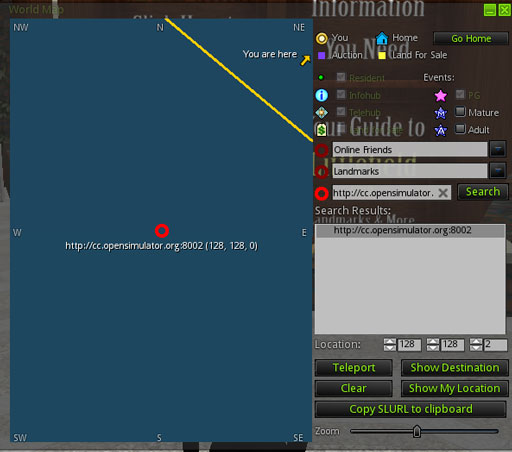
oscc13_speakerprep_loggingin_osccviewer_hgjump

You should arrive at a Landing Zone region with maps and signage to attend the conference.

Still have questions or having trouble logging in?  Email opensim@avacon.org for assistance!

Pages

  • About OSCC
  • Avatars
  • Branding Guidelines
  • Call For Proposals
  • Call for Sponsors
  • Call for Volunteers
  • Co-Presenter Information Form
  • Code of Conduct
  • Community Social Event Sign-Up
  • Compact Schedule
  • Compact Schedule – DRAFT
  • Conference FAQs
  • Conference Organizing Committee
  • Confidential Information Policy
  • Contact
  • Expo Booth Guidelines, Access, & Submissions
  • Greeters & Moderators Prep Page
  • Home
  • How to Watch The Conference Live
  • Intellectual Property Policy
  • Limited Speaker Release Agreement
  • Limited Speaker Release Agreement FAQ
  • List of Speakers
  • Live Schedule
  • Login Info
  • MEC Organizer Details Single Page
  • MEC Speaker Details Single Page
  • News
  • OpenMetaQuest
  • Previous Conferences
  • Register
  • Register
  • Schedule
  • Schedule Draft
  • Speaker Presentation Prep
  • Sponsor Artwork Submission
  • Sponsor Payment
  • Sponsors and Crowdfunders – test
  • Sponsorship Agreement

Categories

  • Meet OSCC Presenters
  • News
  • Old News
  • OSCC Behind the Scenes
  • Uncategorized

Archive

  • September 2026
  • December 2023
  • November 2023
  • October 2023
  • September 2022
  • October 2021

About

The OpenSimulator Community Conference is an annual conference that focuses on the developer and user community creating the OpenSimulator software.

A Production By

Latest News

  • Call for Proposals for the 2026 OpenSimulator Community Conference #OSCC26September 28, 2026 - 9:35 pm
  • Learning about Game Development from the Nook TeamDecember 2, 2023 - 5:20 am
  • Marcel Mosswood & a Safe Metaverse for YouthDecember 1, 2023 - 9:07 am
  • Smooth Moves from Kelso UxlayNovember 28, 2023 - 8:22 am
  • Practical and Pleasing – the OSCC Keynote RegionsNovember 25, 2023 - 9:38 am

Privacy Policy

THIS SITE USES COOKIES. Statistics may be gathered about visitors to this site. This information is only gathered to help us understand our audience. Information recorded may include but is not limited to, IP address, type of operating system and internet browser used, screen resolution and color depth, language, and the pages the user visited. Any information recorded will not be shared with any third party, including potential advertisers.

Comment Policy

By submitting a comment, you are agreeing to relinquish any subsequent rights of ownership to your comment. Comment deletions may be made at any time and for any reason at the discretion of the site administrator.

© Copyright 2013-2026 - AvaCon Inc. - powered by Enfold WordPress Theme
  • Link to Rss this site
  • Link to X
  • Link to Youtube
  • Link to Facebook
  • Link to Flickr
Scroll to top Scroll to top Scroll to top

This site uses cookies. By continuing to browse the site, you are agreeing to our use of cookies.

Accept settingsHide notification onlySettings

Cookie and Privacy Settings


How we use cookies

We may request cookies to be set on your device. We use cookies to let us know when you visit our websites, how you interact with us, to enrich your user experience, and to customize your relationship with our website.

Click on the different category headings to find out more. You can also change some of your preferences. Note that blocking some types of cookies may impact your experience on our websites and the services we are able to offer.

Essential Website Cookies

These cookies are strictly necessary to provide you with services available through our website and to use some of its features.

Because these cookies are strictly necessary to deliver the website, refusing them will have impact how our site functions. You always can block or delete cookies by changing your browser settings and force blocking all cookies on this website. But this will always prompt you to accept/refuse cookies when revisiting our site.

We fully respect if you want to refuse cookies but to avoid asking you again and again kindly allow us to store a cookie for that. You are free to opt out any time or opt in for other cookies to get a better experience. If you refuse cookies we will remove all set cookies in our domain.

We provide you with a list of stored cookies on your computer in our domain so you can check what we stored. Due to security reasons we are not able to show or modify cookies from other domains. You can check these in your browser security settings.

Other external services

We also use different external services like Google Webfonts, Google Maps, and external Video providers. Since these providers may collect personal data like your IP address we allow you to block them here. Please be aware that this might heavily reduce the functionality and appearance of our site. Changes will take effect once you reload the page.

Google Webfont Settings:

Google Map Settings:

Google reCaptcha Settings:

Vimeo and Youtube video embeds:

Privacy Policy

You can read about our cookies and privacy settings in detail on our Privacy Policy Page.

Privacy Policy
Accept settingsHide notification only